
Introduction
When I first started using Terraform (specifically for deploying my blog), I turned to Terraform Cloud (this name was later changed to HCP Terraform).
Terraform and the State
If you know a little bit about Terraform, you are likely familiar with the term State. This effectively corresponds to the current state of your infrastructure and allows Terraform to know what changes to expect if you modify your Terraform files. This State is represented by a file: terraform.tfstate.
By default, Terraform stores this file locally on your machine, but it recommends using a backend storage (read: “store this file somewhere else, for crying out loud!”).
Obviously, Terraform first suggests the HashiCorp solution: Terraform Cloud. By creating an account, you can use their backend to store your state files for free. Naturally, that is exactly what I did a few years ago.
The End of Terraform Cloud
Until this week, when I received this email from HashiCorp.
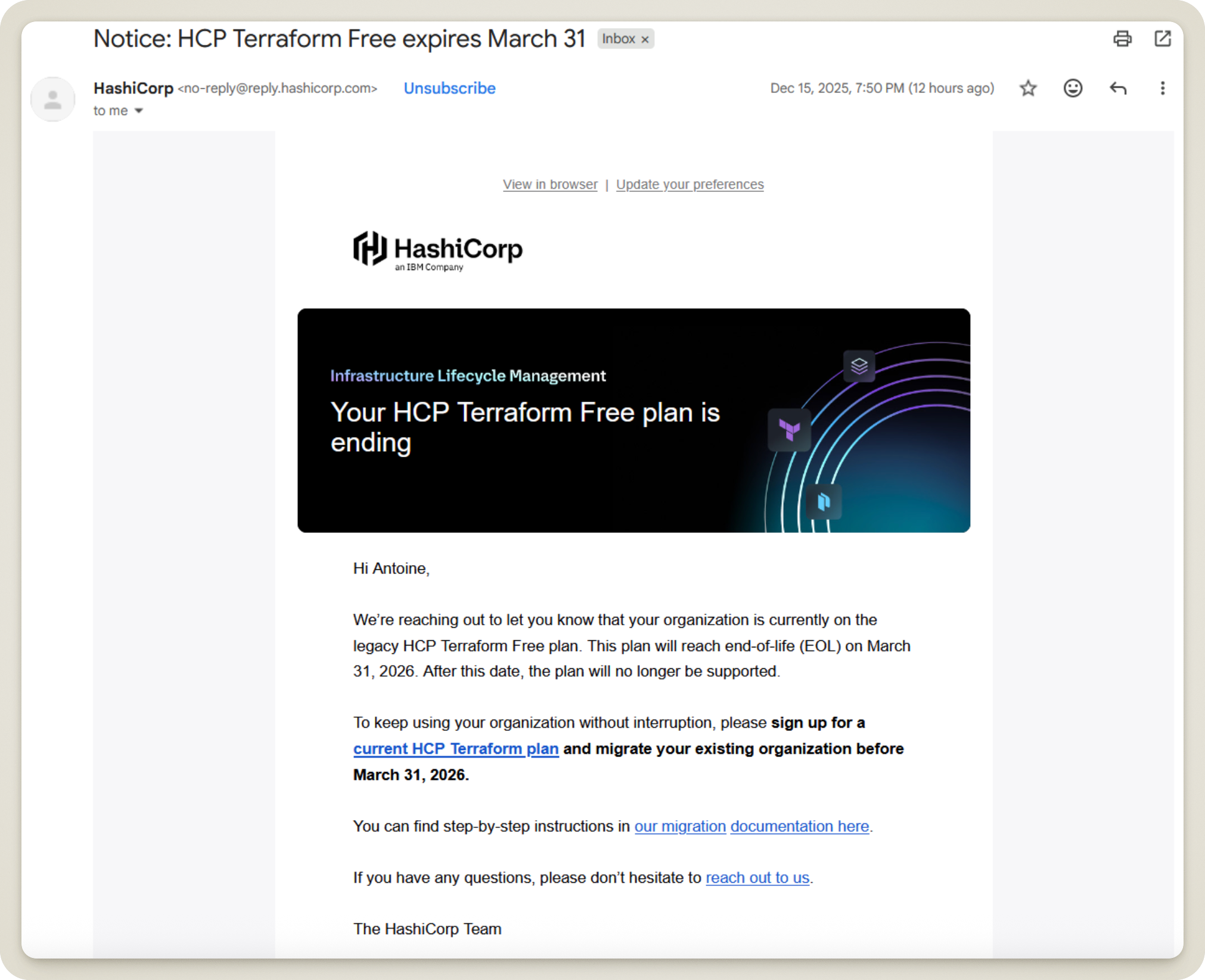
Ouch! We should have seen it coming—all good things must come to an end! The free option from back then will soon cease to exist, so I have to make a choice: upgrade my HashiCorp “plan,” or store my states elsewhere.
Looking more closely at their current offers, HashiCorp still proposes a free version, though it is limited in the number of resources that can be deployed (500 currently). It’s a fairly generous offer, but not knowing how it might evolve, I’ve decided to move my States once and for all.
Farewell, Terraform Cloud!
An alternative for storing your states
Fortunately for me, there are plenty of ways to store a Terraform state, thanks to Remote State.
To put it simply, you just need to tell Terraform where your state file will be stored. We use the backend block to do this.
There are quite a few options, but since I have an AWS account where I deploy all my resources, I naturally gravitated towards the S3 backend.
Here is an example of how to configure an S3 backend with Terraform:
|
|
Now that we have an alternative, it’s time to start the migration!
Migrating the State to S3
I’ll use the migration of the state I use to deploy this blog as an example.
Currently, if we look at my deployment GitHub Actions workflow, we can see that I authenticate to my Terraform Cloud account using a token. That part will no longer be necessary (at least for the credentials; the Terraform CLI will still need to be initialized).
Next, we need to create an S3 bucket to hold the future state files.
Finally, I’ll need to add a backend block to my project to tell Terraform to stop using Terraform Cloud and start using S3 when accessing the state.
Hold on, we aren’t done yet! If I leave this bucket empty, the next time I try to deploy my blog, Terraform will look for a state that… doesn’t exist! It will assume that no resources have been deployed to my AWS account yet. Consequently, Terraform will try to recreate resources that already exist.
The last step, therefore, is to retrieve the state file for my blog project and move it into my S3 bucket.
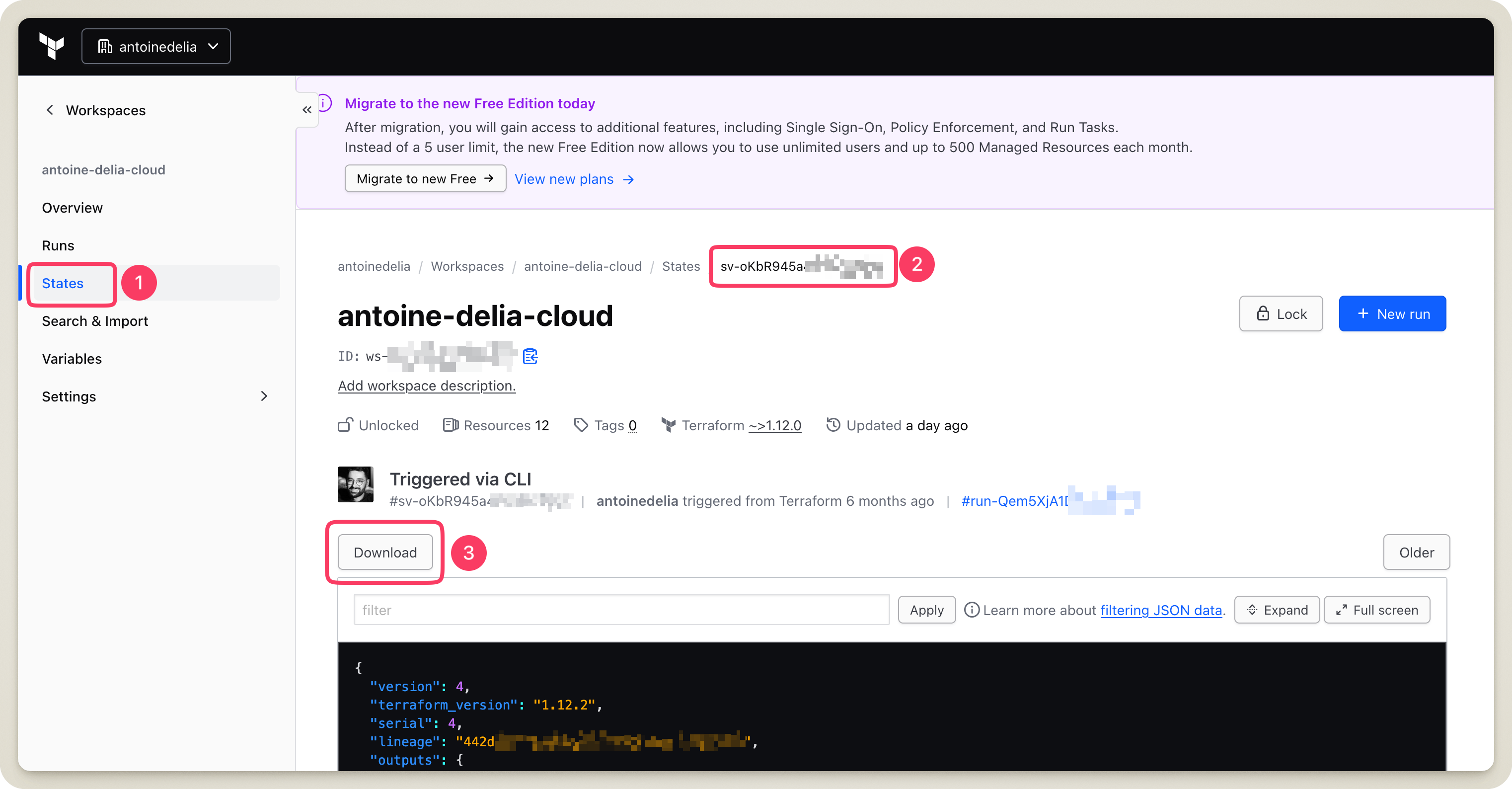
I then need to ensure that the information I provided in the backend block matches reality.
Once everything is ready, it’s time to test and deploy!
I intentionally omitted a few steps in this migration (migrating workspace variables, using GitHub Secrets for the S3 bucket name, adding AWS credentials to GitHub Actions, etc.) to keep this article concise. If you want to see more, check out the Pull Request I opened to perform this migration.
If everything went according to plan, you should see the phrase No changes. Your infrastructure matches the configuration. appear during your terraform plan!
Conclusion
It’s always a pain to perform migrations on existing infrastructure. But with a little time and some willpower, it’s the kind of task that ultimately only takes a few hours.
So, don’t wait until the last minute—dive in!